


Election committee & election manager: Role separation in online elections with NemoVote enables...
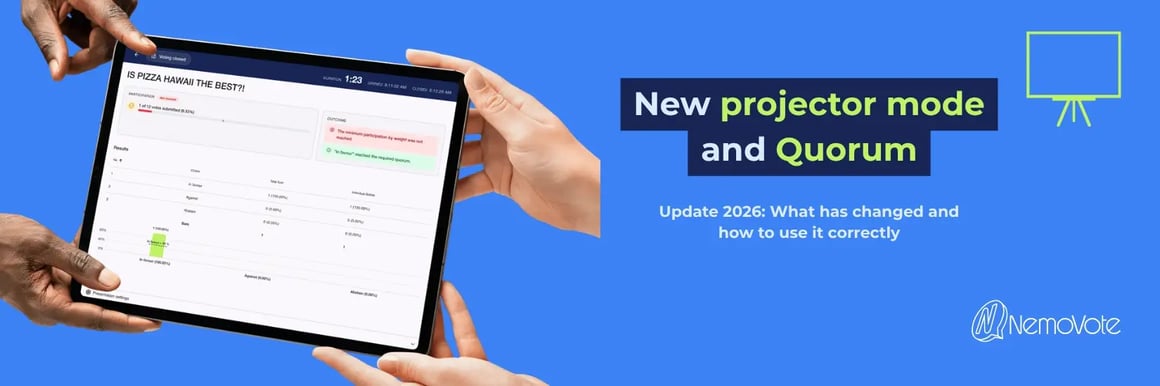 During a live vote, you have to keep track of several things at once: the vote duration, the votes cast, and the information on the shared screen. What we want to avoid: Switching to the admin view can reveal content that isn't intended for the audience and makes the presentation look less professional.
NemoVote has visually redesigned the projector mode for online voting and added direct control options. In addition, there are acceptance rules for individual options and a minimum participation requirement for the entire vote. This article explains the changes and shows you how to distinguish between the two types of quorum for minimum participation.
Summary: What’s Changing with the NemoVote Update
- The visually redesigned projector mode displays the election status, participation, and results more clearly and consolidates the information for your presentation.
- You can open and close the vote directly in the projector view while keeping the screen shared the entire time.
- The built-in timer counts up from the moment the poll opens and replaces the need for a separate stopwatch to track time.
- NemoVote checks acceptance rules for each option and a separately configured minimum participation threshold for the entire poll after it closes.
- Using collapsible presentation settings, you can adjust the text size and displayed content so that the presentation fits the screen and the event.
Chapter
- October Update
- Projector Mode: What’s Changed in the Share View
- Quorum on choice
- Minimum participation quorum
- Results Now with Clear Interpretation
- Conclusion: Live polls are now even easier to follow
- FAQ
The new projector mode: Clearer display for live polls
Projector Mode has received a completely redesigned visual layout. The view clearly separates the voting status, participation, and results display from one another.
Before the poll begins, the presentation indicates that the poll is not yet open. During voting, the current poll status and participation rate are prominently displayed. After the poll closes, results and the evaluation of the configured quorums can be displayed.
Open and close elections directly in Projector Mode
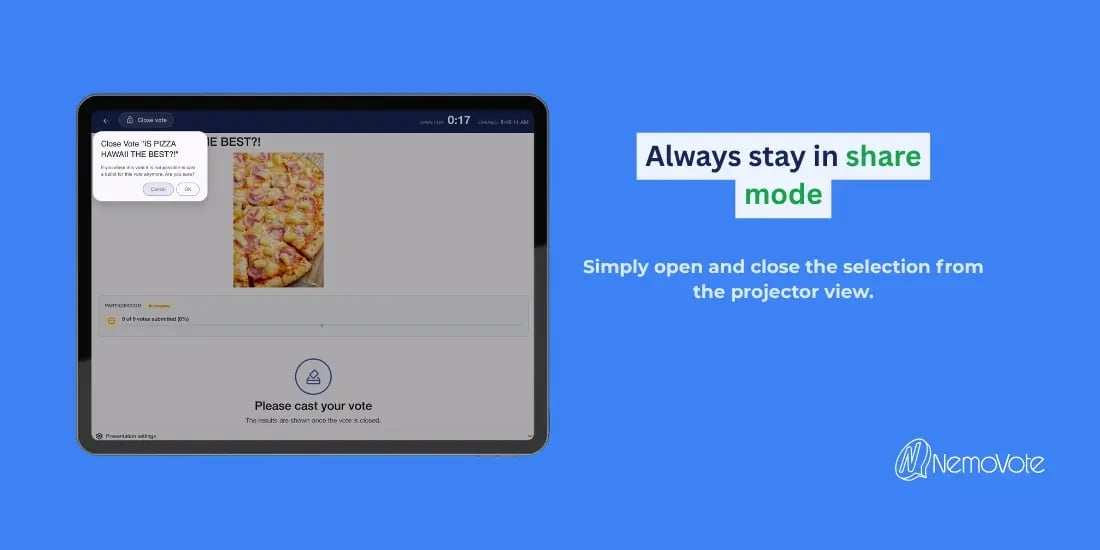
You can open and close the election directly in projector mode. This eliminates the need to switch to the administration view for these two actions.
Screen sharing can remain active throughout. You don’t have to display administrative information just to start or end the poll. This complements the separation of roles and access rights: presentation and access permissions each serve different purposes.
Track voting duration and participation in real time
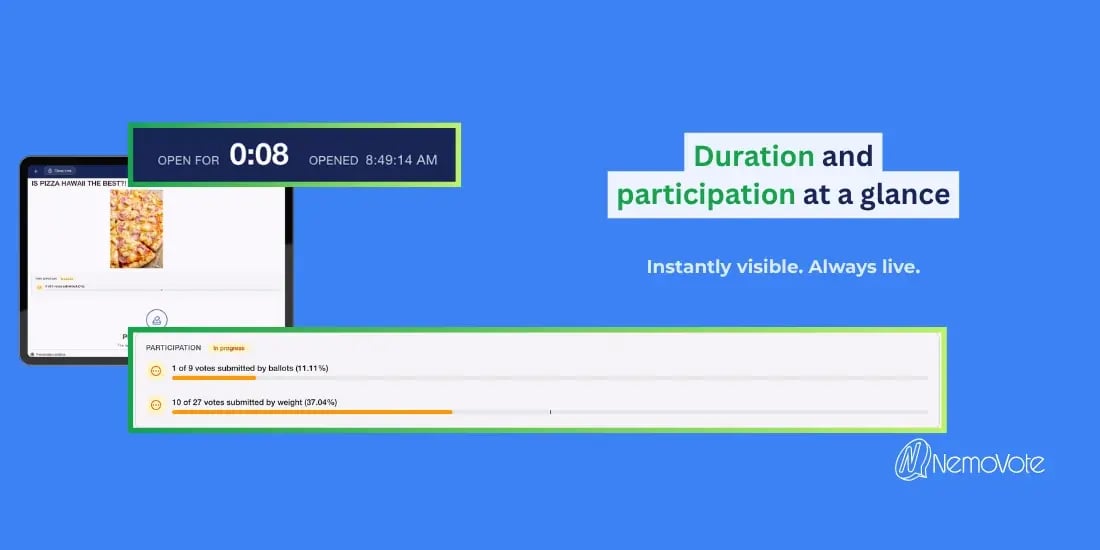
The built-in timer shows how long the poll has been open. It counts up and serves as a guide for manually closing the poll—for example, after one minute. A separate stopwatch, as was often used in the past, is no longer necessary for this purpose.
At the same time, the progress bar displays the votes received and the participation rate. This allows you to see during the vote how participation is developing and how it compares to the set minimum participation threshold.
Votes cast must be distinguished from online presence. To determine who is logged in, you can check the quorum separately. The attendance overview does not replace the participation display for the specific vote.
Adjust text size and displayed content
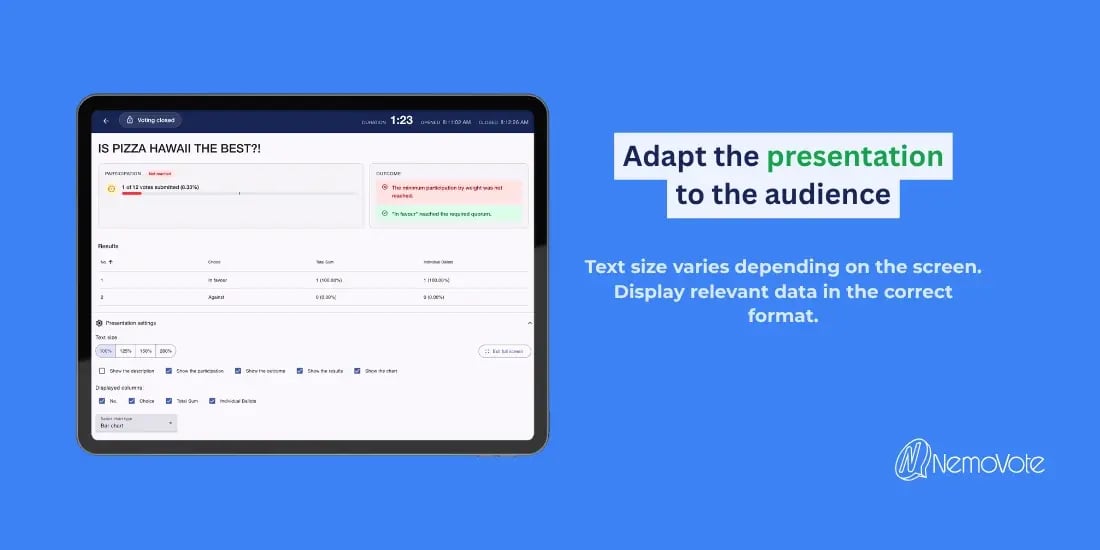
The collapsible presentation settings are located at the bottom of Projector Mode. There, you can select the text size: 100%, 125%, 150%, or 200%. This allows you to adjust the display to fit the projected screen.
You can also selectively show or hide specific content: description, participation, result classification, result table, and chart. You can also decide which table columns are visible. This allows you to limit the display of results to the information relevant to your audience.
The configured acceptance threshold is displayed in the bar chart. This allows you to directly compare the result of a selection option with the rule defined for it.
Quorum per Choice: When Is an Option Approved?
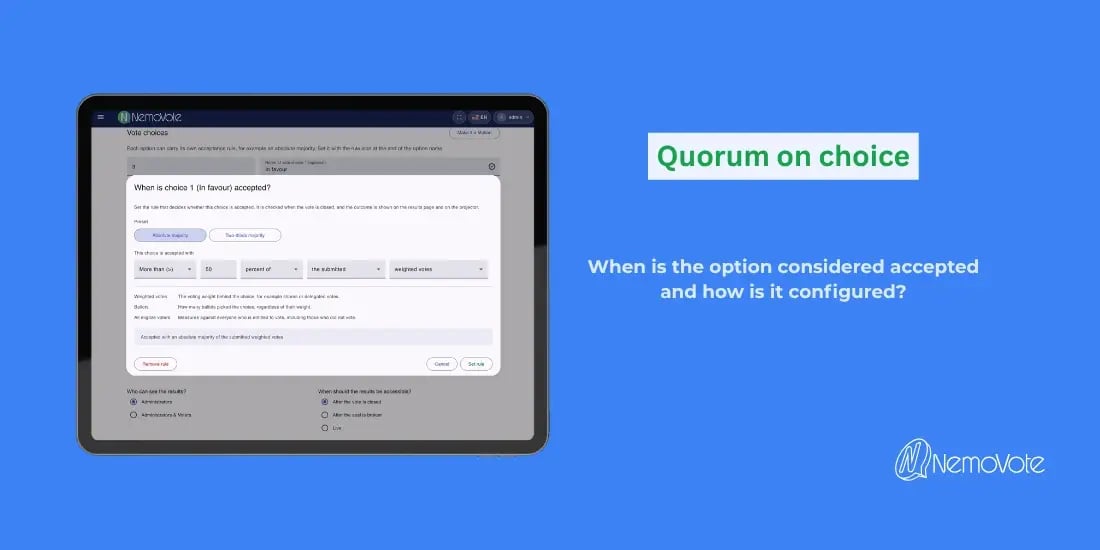
NemoVote allows you to set a custom acceptance rule for each option. You specify, for example, what threshold the “For” option must reach. The rule is checked after the poll closes; the result appears on the results page and in the projector.
The default settings are absolute majority and two-thirds majority. You can also configure the comparison operator, the threshold, and the reference value. When doing so, you can distinguish between ballots and weighted votes, as well as between votes cast and the total number of eligible votes.
In the configuration shown, an absolute majority requires more than 50% of the cast weighted votes for “In favor.” This does not automatically mean more than 50% of all eligible voters. The reference value you set is what matters. The feature overview provides a summary of the other functions.
Participation Quorum: When Does the Entire Vote Count?
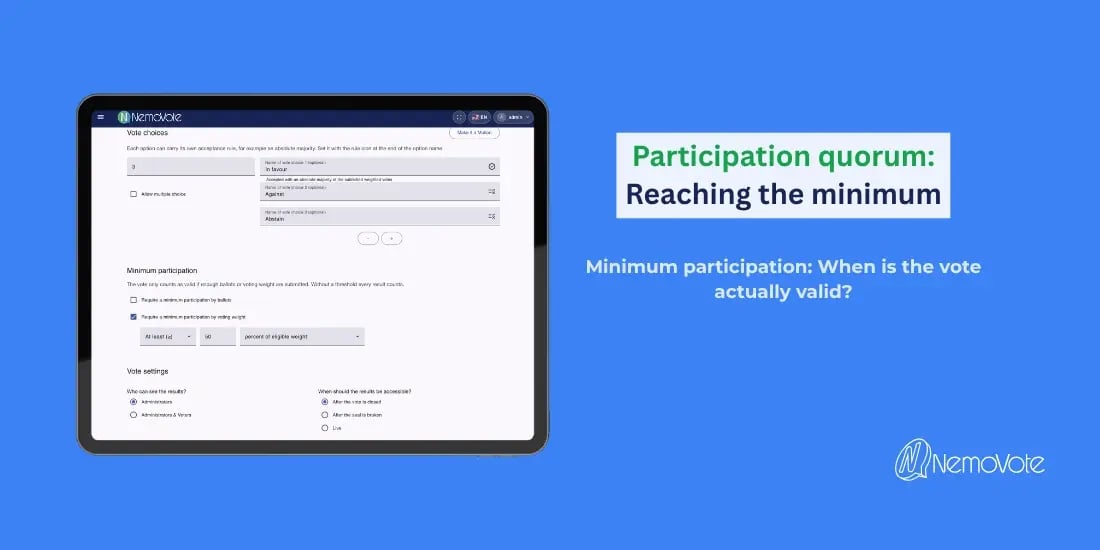
The participation quorum sets the minimum participation rate for the entire election, regardless of which answer was selected. For example, you can require that at least 50% of eligible ballots be cast.
The minimum participation threshold can be configured based on ballots or vote weight. For ballots, you can choose either a percentage of eligible ballots or a fixed number. Eligibility is determined based on the corresponding voter lists.
The setting must comply with the rules of your statutes applicable to your organization.
Majority Achieved, Participation Quorum Not Met: Understanding the Results Correctly
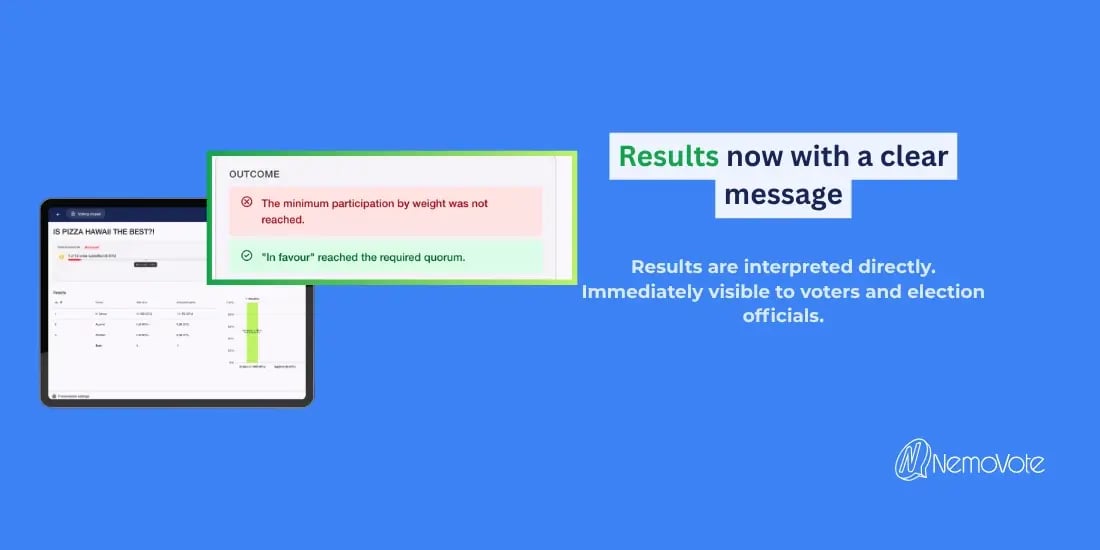
A ballot option can reach its approval threshold even if the minimum participation requirement for the entire vote is not met. NemoVote reports on these two checks separately.
The results view can therefore simultaneously show that “In favor” has reached the required quorum while the minimum participation threshold has not been met. This does not result in a valid approval based solely on the approval of the option: The configured participation requirement remains unmet.
Therefore, check both settings before the vote: What level of approval does the option require, and what turnout is required for the entire vote? Clarify the interpretation with the responsible body; for complex requirements, legal advice is recommended.
Conclusion: Conduct and evaluate live votes more clearly
The revamped Projector Mode combines the control and presentation of your live poll. You can open the poll in the same view, track its duration and participation, and close it without having to switch to the administration interface.
The two quorum types show whether a specific option has reached the required approval threshold and whether the poll as a whole has met the minimum participation threshold. Test the settings in a practice poll before your next event. If you’d like to learn more about NemoVote, visit the NemoVote website to get started.
Frequently Asked Questions About Projector Mode and Quorums
Can I open and close elections directly in projector mode?
Yes. NemoVote allows you to perform both actions directly in the projector view. You don’t need to switch to the administration view to do this. Screen sharing can remain active during startup, while voting is in progress, and when closing the poll.
Is the time display in projector mode a countdown?
No. The timer counts up the elapsed time since the poll opened. It helps keep track of time and replaces the need for a separate stopwatch. The poll administrator decides when to manually close the poll; this does not refer to an automatic closure.
What acceptance rules does NemoVote support for each voting option?
NemoVote offers presets for absolute majority and two-thirds majority, as well as configurable acceptance rules. The threshold value and its reference value are crucial. In particular, check whether the rule should take into account votes cast, the total number of eligible votes, ballots, or vote weight.
What is the difference between an approval quorum and a participation quorum?
The approval quorum relates to approval of a specific option. The participation quorum relates to participation in the entire election, regardless of the option selected. NemoVote checks both separately. Reaching the approval threshold alone does not compensate for a lack of minimum participation.
How can I customize projector mode?
Both text size and individual display options can be turned on or off in projector mode. You’ll always find these settings at the very bottom of the footer in projector mode. There, you can also switch to full-screen mode.